
First steps
This page assumes you have already read the Getting started with online action for animals page and are ready to take the next step.
To get started creating Actions or Action Lists, you need to get your user account upgraded. To do this, fill in the permissions upgrade form to introduce yourself and ask for permissions.
Once your request has been granted, you can get started.
Creating Actions and Action Lists
Once you have permissions, you will see an additional menu item below the page header - Add.
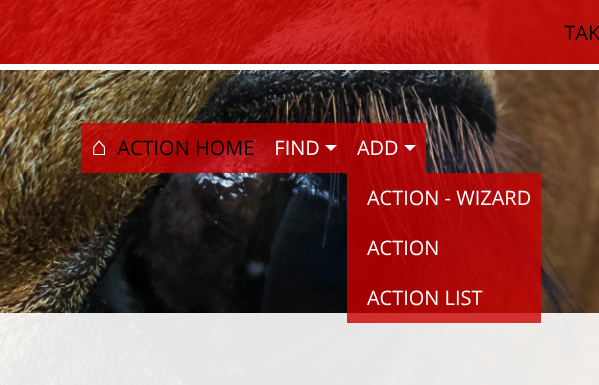
The options under Add are:
- Action - Wizard - Wizard to help create Actions from a URL
- Action - Manual Action creation form
- Action List - Action List creation form
Note: In addition to these options, there is a cheat code! You can create content simply by copying and modifying existing content; more on that later under Cloning.
Add -> Action Wizard
The Wizard is the easiest way to create Actions.
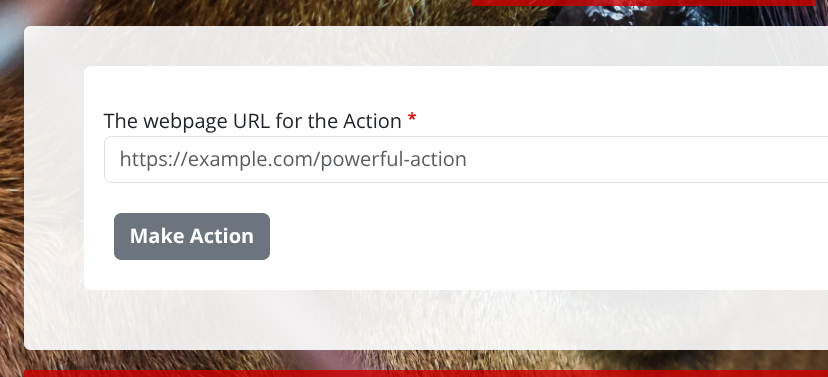
The Wizard features is a single text box in which you paste in the URL for the website that features your Action. Click submit and we will try and fetch the page, and as much data as we can from it. This can include the title, description, Action URL and so on. The form will then redirect you to the next page, Add -> Action, with as many of these fields prefilled as possible.
Note: Some websites have something called "Bot protections" on them. This is to stop malicious machines on the Internet, which we aren't, but they can't tell the difference and will thwart our attempts to pull data from them. In this case, you will also be redirected to the Add -> Action page, with messages at the top of the page about what went wrong, and you will then need to go through our manual process.
Add -> Action
If you want full control over creating your Action, you can skip the Action Wizard and just go straight here.
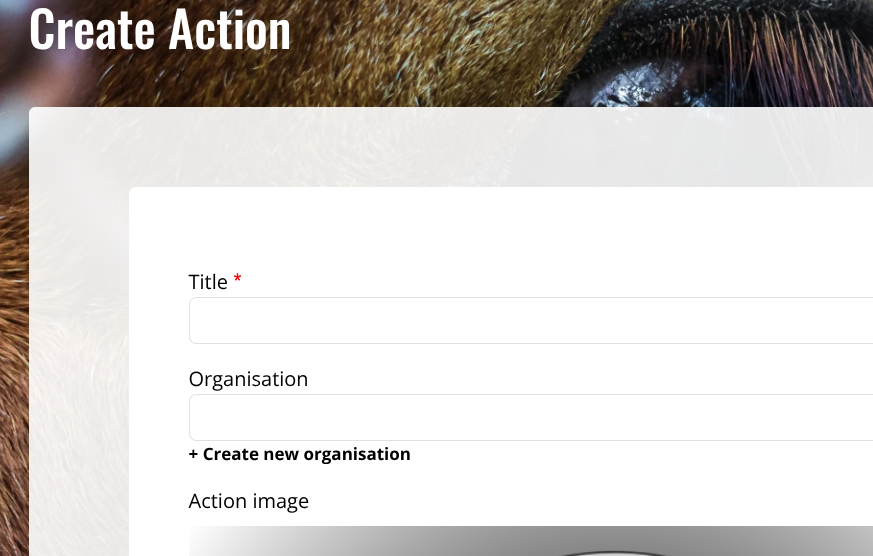
Most of the fields are fairly self-explanatory, but there are some with logic involved. Here is a quick rundown:
- Title: Try to make this self-explanatory and clear. This will also be used as a prompt for the AI helper, so make it a short, sharp explanation of the issue.
- Organisation: You can assign this Action to an Organisation. If the Organisation doesn't exist, create it using the link, then come back and use the autocomplete to add it. You can also leave this field blank.
- Action Image: This will be used as the header for your Action, and also a small version will be used when it is featured in lists of Actions, including Action Lists. You can leave this blank, but it's better not to.
- Action Links: This is what the site and Actions are all about. The URL to the webpage that features your Action. You can also have multiple URLs here, for cases where there are more than one Action.
- Summary: Short introduction to your action, 1 or 2 sentences. This will be shown to the users in lists.
- Description: Full details of your Action.
- Additional Links: Any URLs for more context, such as info pages, videos etc.
- Valid Dates: We have dates on Actions to ensure content doesn't become stale. By default, your Action will be valid for 3 months, although you can extend this out to a year from the date you make the Action. Your Action won't dissappear after the end date passes, but users will get a notification that it may be stale. Note: You can come back later and update the end date of the Action at any time, extending it for another year each time.
- Action Type: Options for type of Action you have created.
- Region: Is this Action limited to users of a specific Region. If so include it here. Users whose Region doesn't match this will receive a warning.
- Topic: This helps users find issues they have a specific interest in. If you wish to add Topics, please use the contact form to let us know.
- Tags: Like Topics, but you can create them yourself, and they can be much broader. You can use anything here you want to group Actions and Action Lists under.
- Action Status: If an Action becomes invalid, you can mark it as Closed and users will no longer be able to complete it or change their status for the Action. It will also delete any To-dos related to the Action.
- Visibility: If you mark the content as private, it will not appear in lists, searches on the site and we will ask search engines not to allow it in their searches (which they might ignore). It can still be accessed directly by URL, and can be added to Action Lists. So it is not completely private, keep that in mind.
Whether you choose the Action Wizard or the Action form, you will end up with an Action like this:
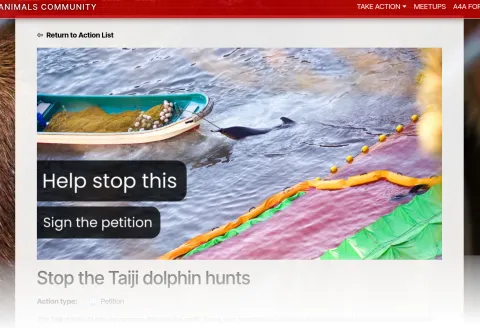
Have a browse of the Actions on the site, for inspiration.
Add -> Action List
Most of the fields are the same as those for Actions, with some extra things here:
- List type: Will this just be done by people online, or will you meetup in person or online to talk about the Action List and do them together?
- Organisers: If you add other Activists as organisers here, so long as they have filled out the form mentioned above, they will be able to edit the Action List as if they created it.
- Actions: This is what it's all about, the list of your Actions.
There are three ways to add Actions to a list, depending on whether you are creating new Actions, or attaching ones already on the site. You can access these from this form beneath the Actions on your Action List:
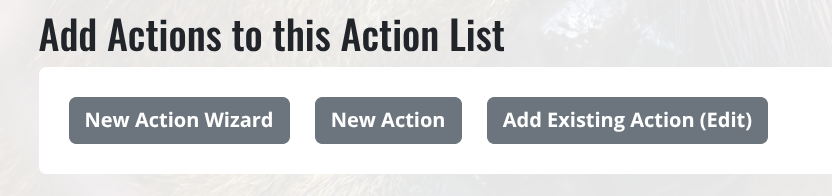
The first two will let you use the Action Wizard or Action form to create a new Action, and it will automatically add whatever you create to your list. The last is for adding already existing Actions to your list. This will drop you into the edit screen, where you can search for already existing Actions.
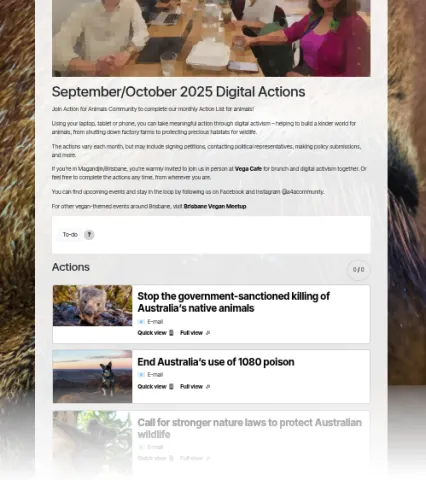
Once you've completed this process, you should have an Action List:
Action and Action List Cloning
Finally, as mentioned, there is a cheat code for creating Actions and Action Lists. Just find one you like, or one you have created previously, and select Clone next to edit at the top of the content.
This will duplicate every field, and you can start customising and editing it, including deleting things you no longer need and adding in things you want, to make your new content. This is the easiest method to create new content, and once you are familiar with the site, you'll use this a lot.
Action and Action Deletion
You can delete your own Actions and Action Lists, but if any users have completed them, it will do what is called a soft delete. It will put "Removed:" at the start of the title, and remove/anonymise most other fields.
If no users have completed the Action or Action List, it will completely delete it from our system.
Either form of deletion will remove it from all users' To-do lists.
More help or information
Still not sure, no problems, we are here to help. Just pop us a message from the contact form linked in the header!